

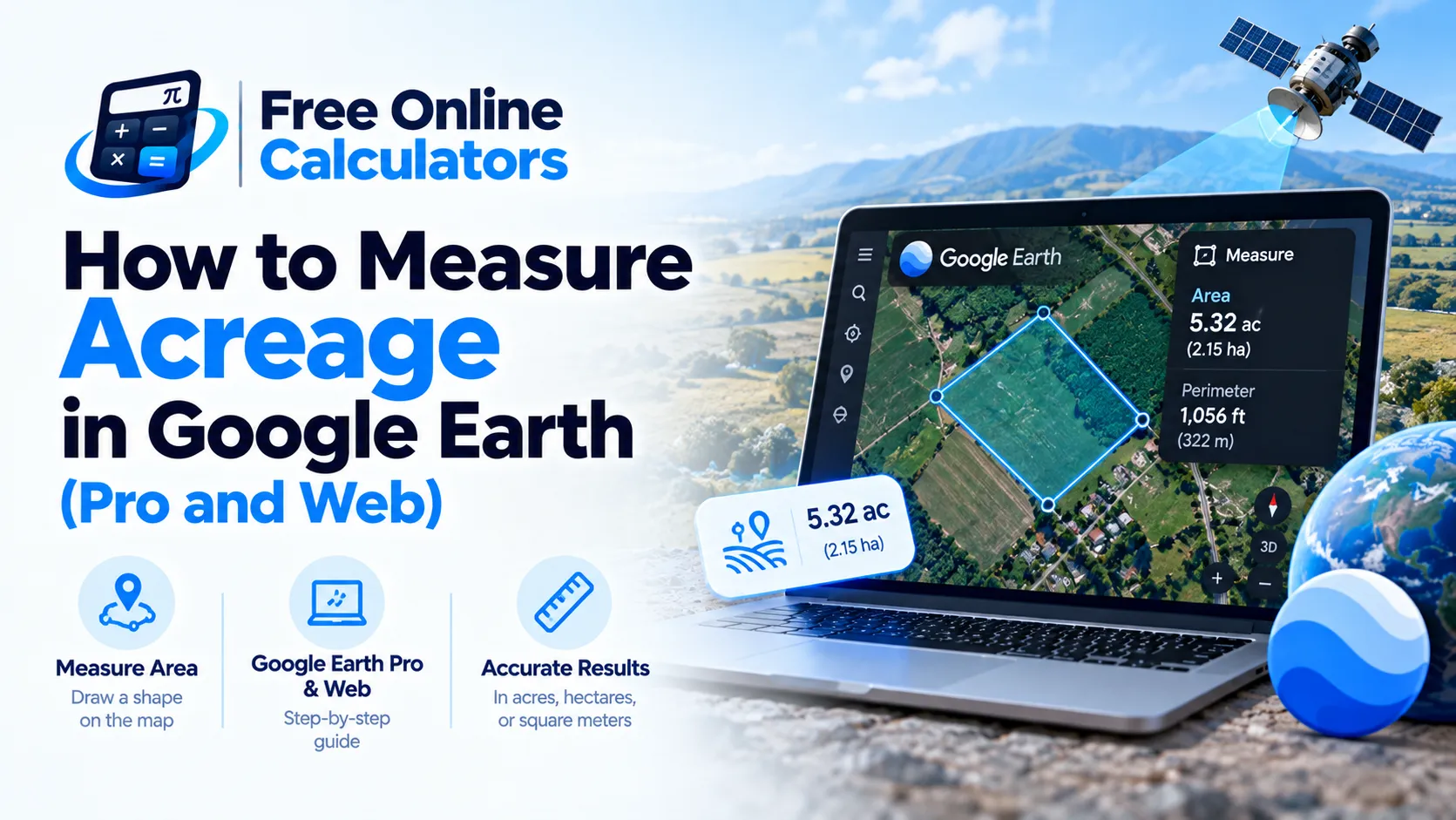
How to Measure Acreage in Google Earth (Pro and Web)
Google Earth can show the area of a parcel straight in acres, which saves a conversion step. This guide covers how to measure acreage in Google Earth Pro on a computer and in Google Earth on the web, how to save the shape, and how to check the result.
Google Earth Pro: measure acreage with the ruler
- Open Google Earth Pro and fly to the property. Turn off 3D terrain under Layers if the hills make corners hard to place.
- Click the Ruler button in the toolbar and pick the Polygon tab.
- Click each corner of the boundary in order. Google Earth closes the shape for you.
- Read the Area line and set its unit menu to Acres. The perimeter shows on the line above.
- Click Save to keep the polygon in My Places so you can open it again.
The Ruler result is already in acres. To compare it with a deed in square feet or hectares, enter the figure into the acreage calculator.
Use Add Polygon for a shape you will edit
For a boundary you plan to adjust, use Add > Polygon instead. Name it, click the corners, and open the Measurements tab to see the area and perimeter. You can drag corners later and the area updates, which helps when you compare two possible lot splits.
Google Earth on the web: measure acreage in a browser
- Open Google Earth in Chrome or another supported browser and search for the address.
- Click the Measure distance and area ruler icon in the left menu.
- Click each corner, then click the first point again to close the shape.
- Read the area in the measure box and switch the unit to acres.
The web version needs no install, but it does not keep the historical imagery slider that Google Earth Pro offers.
Check an old boundary with historical imagery
Google Earth Pro keeps older aerial photos. Click the clock icon in the toolbar and slide back to a year when the field edges were clear, before trees grew over a fence line. Measure on that image, then compare with the current one.
Worked example: two ways to the same acreage
A four-sided wooded lot measures 2.28 acres with the Polygon tab. To double-check, draw a diagonal to split it into two triangles and measure their sides with the Line tab: one triangle has sides of 300, 350, and 400 ft, the other 280, 400, and 360 ft, sharing the 400 ft diagonal. Heron’s formula gives about 50,833 ft² and 48,951 ft², a total of 99,784 ft², or 2.29 acres. The two methods agree within half a percent, so you can trust the number. A gap of 5 percent or more tells you a corner is off.
Google Earth or Google Maps for acreage?
Google Earth gives acres directly, saves shapes, and keeps old imagery. If you only need a fast estimate from any browser, the steps to measure acreage on Google Maps take less setup.
Accuracy limits
- Map area, not surface area. Google Earth reports the flat area seen from above, so sloped ground holds more surface than it shows.
- Corner placement. A few feet of error per corner adds up on small lots; zoom in close.
- Not a survey. A deed, plat, or licensed survey sets the legal acreage.
Common mistakes
- Using the Line tab. Line measures length only; switch to Polygon for area.
- Leaving the unit on square meters. Set the unit menu to acres before you write the number down.
- Measuring with 3D buildings on. Roofs and terrain can shift where a click lands.
For a parcel split into odd pieces, the triangle area calculator finds each piece from its three sides.
Quick reference
Ruler, Polygon tab, click the corners, set Area to acres, Save. Convert the result to any other unit with an online calculator from CalculateGuide.