

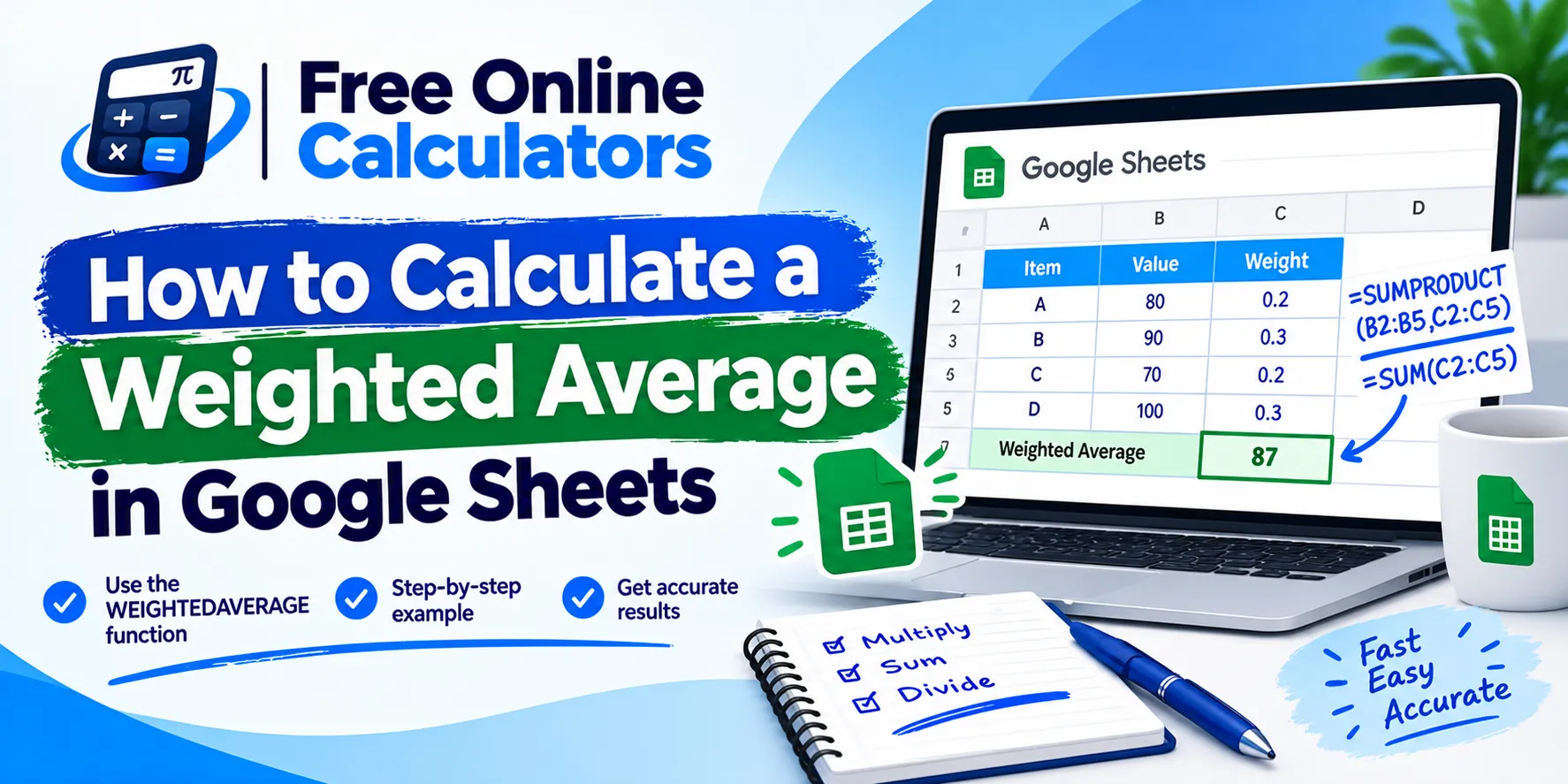
How to Calculate a Weighted Average in Google Sheets
Google Sheets has a built-in function for weighted averages, and a classic formula that works in every spreadsheet. This guide shows both, how to weight only the rows that match a condition, how to fix the usual errors, and how to do the same job in Python.
Set up the data
Put the values in one column and their weights in the next. For a course grade:
| A: Item | B: Score | C: Weight | |
|---|---|---|---|
| 2 | Homework | 90 | 20 |
| 3 | Quizzes | 80 | 30 |
| 4 | Final exam | 70 | 50 |
Method 1: AVERAGE.WEIGHTED
=AVERAGE.WEIGHTED(B2:B4, C2:C4)
The first range holds the values and the second the weights. The result is 77. The weights do not need to add to 100; the function divides by their total for you. You can add more value and weight pairs to the same call: =AVERAGE.WEIGHTED(B2:B4, C2:C4, E2:E4, F2:F4).
Method 2: SUMPRODUCT divided by SUM
=SUMPRODUCT(B2:B4, C2:C4) / SUM(C2:C4)
SUMPRODUCT multiplies each score by its weight and adds the products, 7,700 here, and SUM adds the weights, 100. The result is again 77. This form also works in Excel, which has no AVERAGE.WEIGHTED function. For more spreadsheet formulas built step by step, see how to calculate the payback period in Excel.
Weighted average for one category only
To average only the rows where column A says “Math”:
=SUMPRODUCT((A2:A20=”Math”) * B2:B20 * C2:C20) / SUMIF(A2:A20, “Math”, C2:C20)
The test (A2:A20=”Math”) returns 1 for matching rows and 0 for the rest, so only Math rows reach the total.
Weighted average in Google Sheets with percentage weights
If the weights are stored as 20%, 30%, and 50%, both methods still work, because Sheets treats 20% as 0.2. Just keep every weight in the same format.
Fixing common errors
- #DIV/0! means the weights add to zero. Check for empty weight cells.
- #VALUE! in SUMPRODUCT means the two ranges are different sizes. Match the rows exactly.
- A result that looks too low often means a value is stored as text. Format the column as a number.
- Blank values count as zero in SUMPRODUCT. Remove those rows, or the weight still counts in the total.
Calculating the mean in Python
For larger datasets, Python does the same job in a line or two:
- Plain mean: statistics.mean([90, 80, 70]) returns 80.
- Weighted mean: numpy.average([90, 80, 70], weights=[20, 30, 50]) returns 77.0.
- pandas: df[“score”].mean() gives the plain mean; (df[“score”] * df[“weight”]).sum() / df[“weight”].sum() gives the weighted one.
Check the result by hand
0.20 × 90 + 0.30 × 80 + 0.50 × 70 = 18 + 24 + 35 = 77. If the sheet disagrees with a hand check like this, look at the ranges first. The average calculator gives a quick second opinion without a sheet.
For grades, prices, and forecasts worked out in full, see the weighted average examples.
For survey and Likert data, the weighted mean formula in research explains how to interpret the result.
Quick reference
=AVERAGE.WEIGHTED(values, weights), or =SUMPRODUCT(values, weights)/SUM(weights). For quick checks away from a spreadsheet, use the free tools on CalculateGuide.